Frequently Asked Questions
Including WordPress and Shopify guides.
90 Day Trial. No Credit Card Required.
Testimonial.Reviews is our web address – www.testimonials.reviews and we are a customer testimonial automation platform which allows you to automatically collect and display reviews from customers as well as publish customer feedback to other platforms.

Widgets are used to display testimonials and reviews collected on your website(s). They can be fully customised to suit your brand and are easily added to any site with a single line of code.

SuperLinks are a powerful way to send customers to your review forms and have pre-filled in with any information you already hold on them.
They work by parsing data into a special link that can be used either dynamically (via CRM, email marketing or automation software) or on a singular basis (when you have a specific customer in mind).
Using our Zapier integration you can create a SuperLink for any customer you already track in other software.

EndoForms are used to capture testimonials from your customers. They can be fully customised to suit your brand, pre-filled with customer data using SuperLinks and are loaded with powerful features, such as:
SmartAvatars
Allow users to add their avatar with one-click imports from social accounts or by using our fast image uploader.
Publish to other platforms
Customers can easily publish their comments to review platforms including Google My Business, Facebook Pages and Yelp.
Incentivised requests
Reward loyal customers with an incentive to complete their testimonial. Set up within the form builder in minutes.
Live previews
Customers can view a live preview of their testimonial as they create it, adding to the cool-factor!
Adding widgets to WordPress is very easy and done in two steps:
Step 1: Global tracking code
On WordPress, go to Appearance > Editor and you'll see the files for your theme. Locate the "Theme Header (header.php)" file and then paste your global tracking code before the closing </head> tag.
If you save changes and refresh your site, you should see the tracking code is active on Endorsal.
Another option would be to use a dedicated plugin for managing header code, you could try this one: https://wordpress.org/plugins/insert-headers-and-footers/
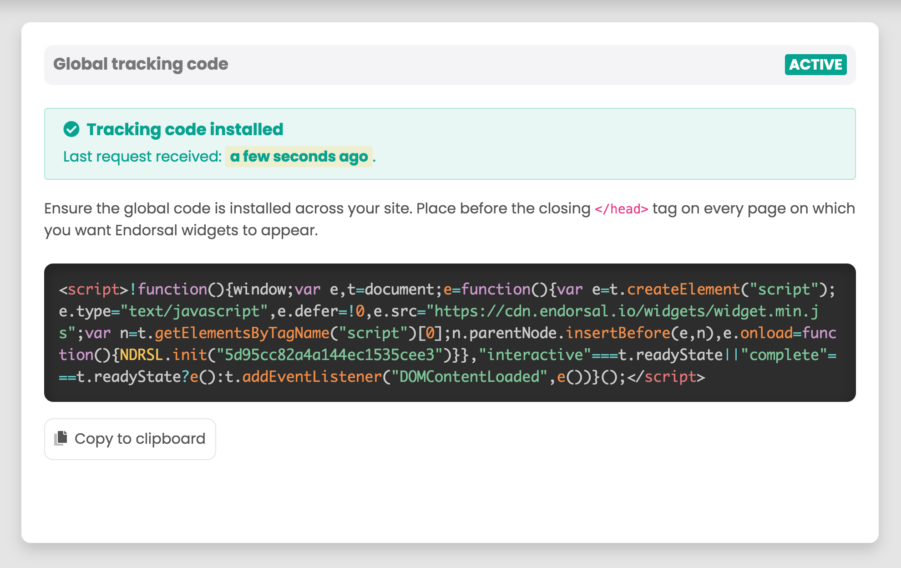
Once this this happens, FOMO popups will automatically display, as long as they are switched on and you have approved testimonials.
If you want to embed testimonial widgets or Walls of Love, you also need to do step 2:
Step 2: Add the widget code
Find the code on the widget's embed page, which will look like this:
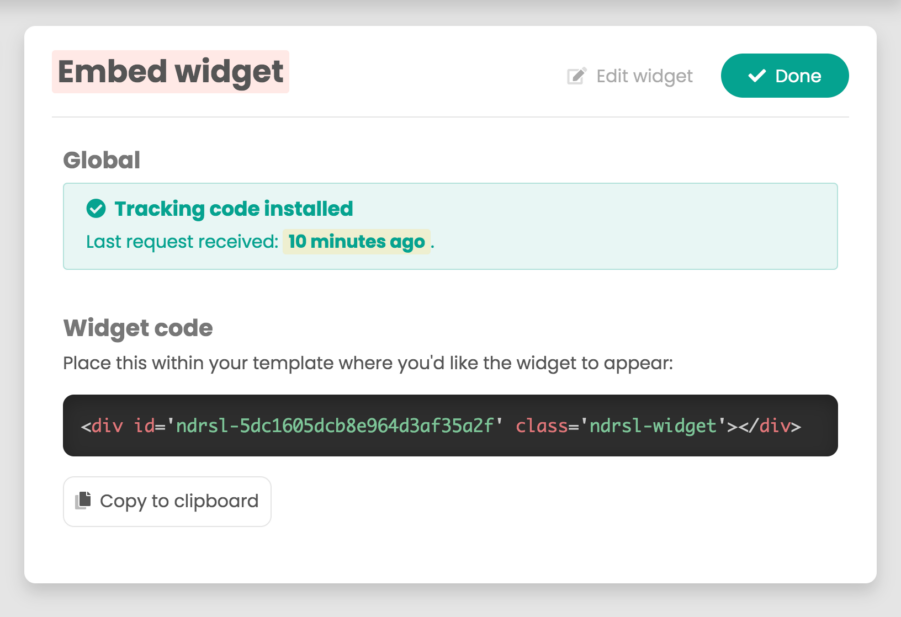
Copy that code and paste that into a WordPress HTML widget or using another plugin that allows for HTML embeds.
Once that's saved, refresh your site and as long as you have approved testimonials, your widgets will appear!
It's not technically possible to post a review directly on a user's behalf using Google/Facebook APIs. The customer will be shown a link to post the same review on that platform and their comments automatically copied to the clipboard. They can add the review in a couple of clicks, so it's the next best thing. your widgets will appear!
Usage is measured by the following metrics:
Visitors (MAUs)
A visitor is classed as a monthly active user across all properties. It does not take into account page views.
Testimonial/review submissions
New testimonials across all properties. Includes EndoForm submissions and imports from other platforms.
Properties
A property is a unique domain on which the embed code is installed and for which testimonials are collected.
Adding widgets to Shopify is very easy and done in two steps:
Recommendation: Please backup your Shopify store before starting.
Step 1: Global tracking code
On your Shopify dashboard, head down to "Themes" on the left menu. When there, find your current theme, click the "Actions" dropdown and select "Edit code":
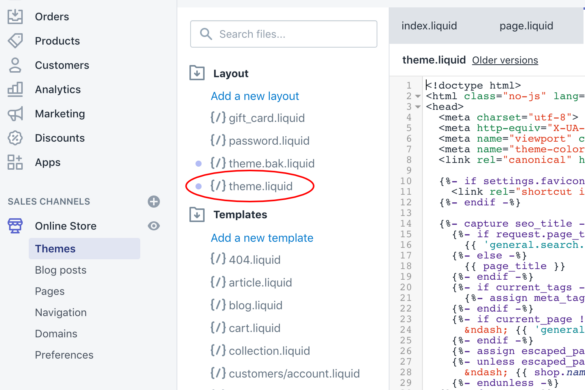
Locate the "theme.liquid" file from the left menu:
Paste your global tracking code before the closing </head> tag:
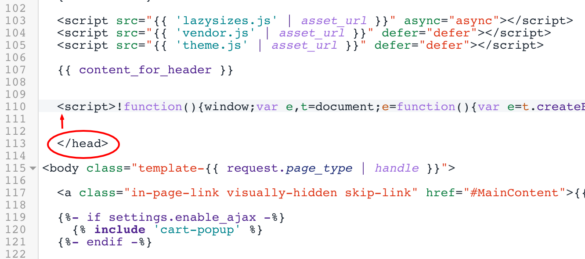
If you save changes and refresh your site, you should see the tracking code is active on your Testimonial.Reviews dashboard.
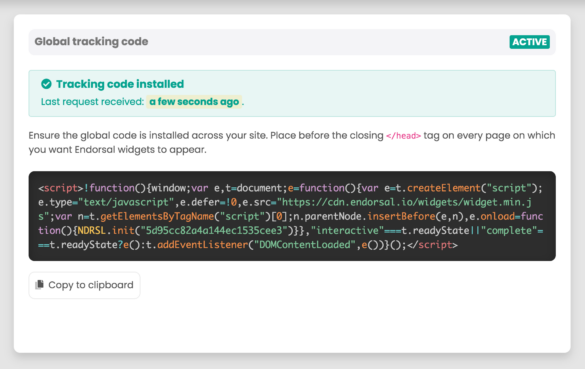
Once this this happens, FOMO popups will automatically display, as long as they are switched on and you have approved testimonials.
If you want to embed testimonial widgets or Walls of Love, you also need to do step 2:
Step 2:
Add the widget codeFind the code on the widget's embed page, which will look like this:
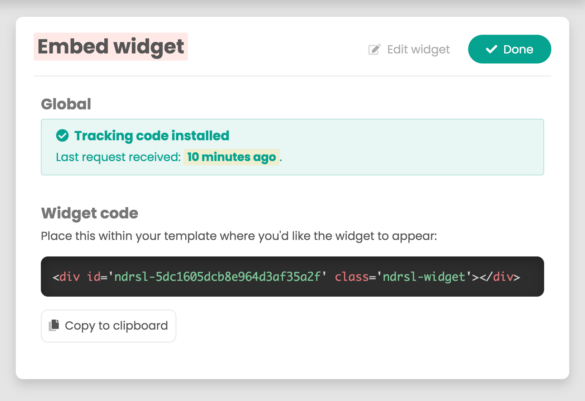
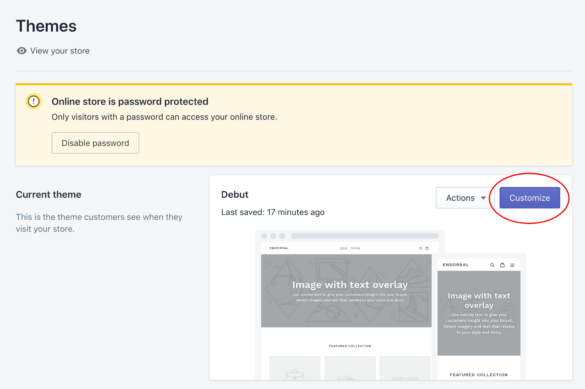
Copy that code and head back to Shopify. Go back to the "Themes" page and click on "Customise":
Select the page on which you'd like to add a widget from the menu at the top and then click "Add section" on the left menu:
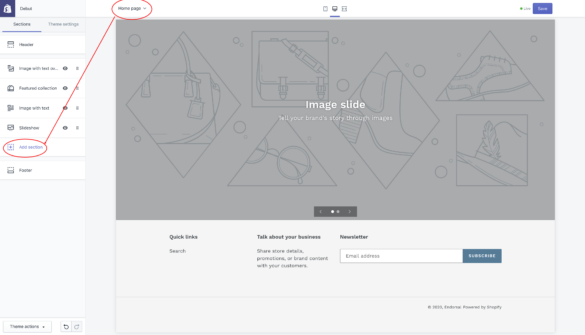
Scroll down to the bottom and select "Custom content", then click the "Add" button:

Remove any default content added, using the "Remove content" button. Then click "Add content":
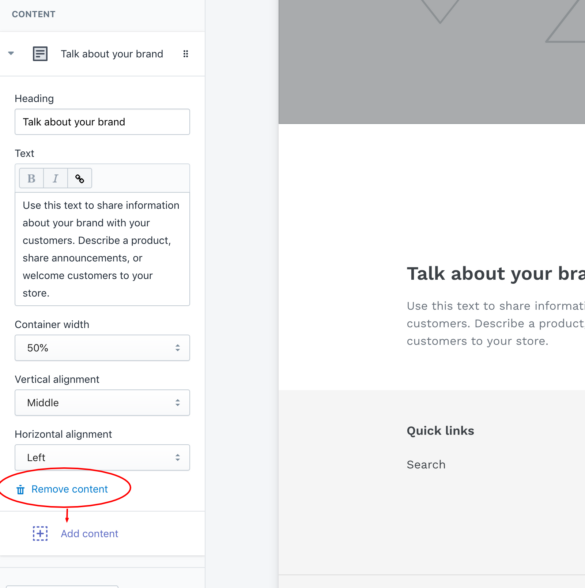
Select "Custom HTML" as the content type, paste in the Testimonial.Reviews widget code in the "HTML" box and be sure to set "Container width" to 100%:

Once that's saved, refresh your site and as long as you have approved testimonials, your widgets will appear!
A COMPLETE DONE FOR YOU SERVICE
We also offer a full set up and configuration service with 12 months premium subscription included!
testimonials.
reviews
CONTACT
© 2022 Testimonials Reviews. All Right Reserved.